Importing Books
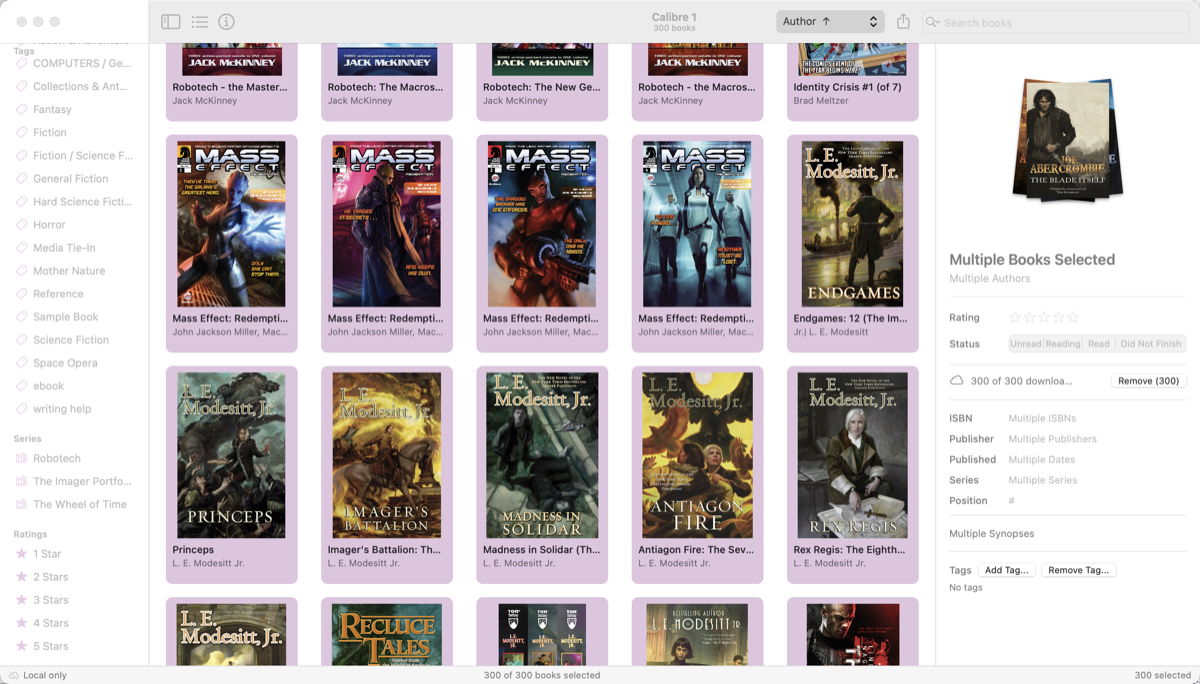
Alcove supports EPUB, PDF, MOBI, and AZW3 files. You can import them in several ways.
Drag and Drop
Drag one or more book files onto the Alcove book grid. Alcove reads the metadata from each file — title, authors, cover art, ISBN, publisher, publication date, and synopsis — and adds it to your library.
Mac Drag from Finder onto the grid at any time.
iPad Drag from the Files app or another app that supports drag and drop. You can also tap the Import button in the toolbar — or choose Import Books… from the sidebar ⋯ menu — to open a file picker.
Opening from Finder, Files App, or Share Sheet
You can hand a book file directly to Alcove from anywhere on your device — no need to use the Import menu.
Mac Double-click an EPUB, PDF, MOBI, or AZW3 file in Finder and choose Open With → Alcove, or drag one or more files onto the Alcove icon in the Dock. If a library window is open, the books are imported into it. If multiple libraries are open, a dialog lets you choose which one to import into.
iPad In the Files app, tap and hold a book file and choose Alcove from the apps offered to open it — Alcove is registered as a handler for EPUB and PDF files. You can also choose Share → Alcove, or use the Share sheet from any app (Mail, Safari, etc.) that contains a book attachment.
When Alcove receives a file this way, the imported books are automatically selected in the grid so you can see them immediately.
Library Menu (Mac)
Choose Library → Import Books… to open a file picker. Select one or more files and click Open.
Import from Calibre (Mac only)
If Calibre is installed on your Mac, Library → Import from Calibre… appears automatically. This imports books directly from a Calibre library folder, bringing across metadata, covers, series, and tags.
How it works
- Alcove auto-detects your Calibre library folder if it's in the default location, or click Browse… to choose it manually. The folder is remembered for future imports.
- A summary shows how many books will be imported (new to Alcove), updated (already in Alcove but changed in Calibre), or skipped (no supported format available).
- Set your update options (see below), then click Import.
- When the import finishes, a summary shows the final counts. Click Done to close.
Update options
| Option | Description |
|---|---|
| Update metadata | Overwrite title, authors, and other fields for books already in your library |
| Replace files | Replace the stored book file with the version from Calibre |
| If newer | Only update when Calibre's copy was modified more recently than Alcove's |
| Always | Update regardless of modification dates |
Supported formats
Alcove imports EPUB, PDF, AZW3, and MOBI from Calibre. Books stored only in KFX or audio formats are skipped and counted in the summary.
Audiobooks and other unsupported formats
Calibre can manage audiobooks and other non-ebook file types. Alcove skips these during import — they appear in the Skipped count with a note explaining why. No data is lost in Calibre; Alcove simply doesn't import formats it can't read.
What Happens on Import
- Alcove reads metadata from the file (title, authors, cover art, ISBN, publisher, publication date, synopsis)
- The file is copied into your library — the original is not moved or deleted
- The cover image is extracted and stored separately from the book file
- The book appears in your grid immediately
If no cover is found in the file, Alcove displays a placeholder. You can replace the cover at any time.
Duplicate Detection
Before adding a book, Alcove checks whether it's already in your library by comparing the file contents. If a match is found, a sheet lists the duplicates and lets you choose to skip them or import anyway.
By default, Alcove also checks by title and author to catch the same book in a different file. You can turn this off in Settings → Import → Check title and author when detecting duplicates if you intentionally keep multiple editions.
PDF Notes
PDFs are imported the same way as EPUBs. Alcove reads the standard PDF metadata fields (Title, Author, Subject, Keywords) and uses the first page as the cover image. If the PDF has no title metadata, the filename is used.
PDFs open in your preferred PDF reader app. On Mac, you can set which app is used in Settings → Default PDF Reader. On iPad, use the share sheet to choose an app each time.
MOBI and AZW3 Notes
MOBI and AZW3 files (Amazon's formats) are imported using the built-in format converter. Metadata and cover art are extracted automatically. These files open in Alcove's reader or your chosen external app just like EPUBs.
After Importing
Once your books are in Alcove, you can: