Browsing Your Library
Grid and List Views
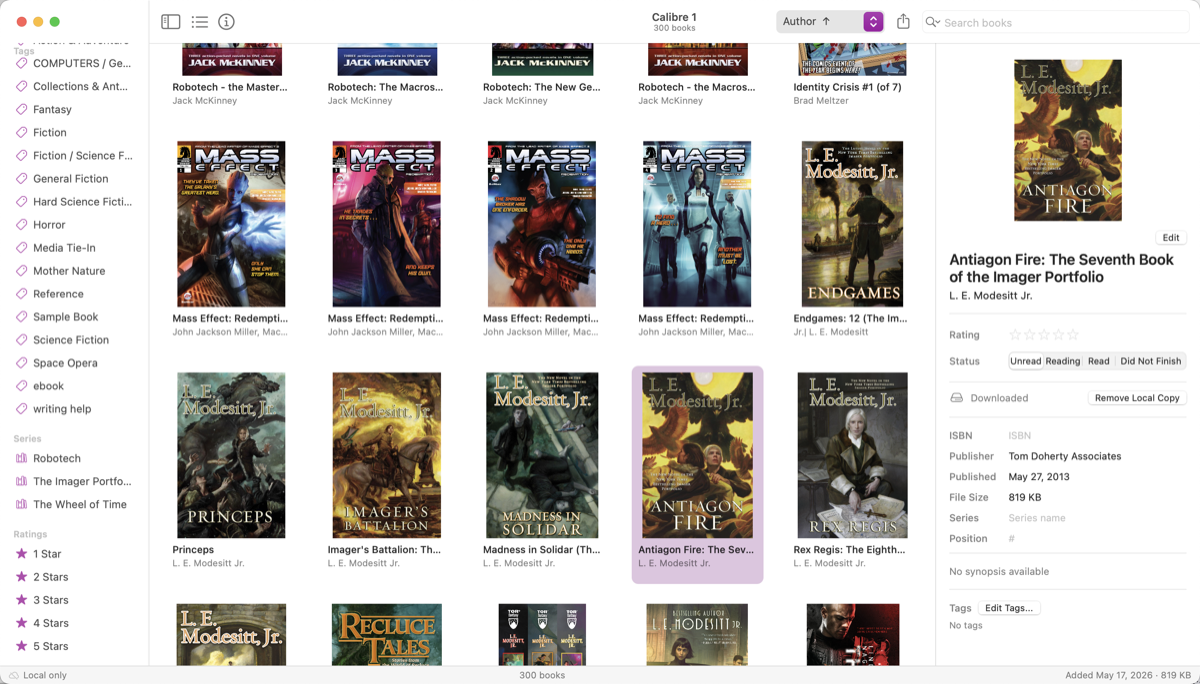
Mac Alcove shows your books in two layouts. Toggle between them using the view buttons in the toolbar, or choose View → Grid / View → List. Grid and list sort independently and each remembers its last sort.
iPad Alcove shows your books in two layouts. Tap the View Options button (top-right toolbar) to switch between Grid and List, and to choose the list cell style (Basic or Dense).
Grid view displays cover art thumbnails — useful for visually scanning a large collection.
List view displays each book as a row with cover thumbnail, title, author, and reading status badge.
Mac The list is a sortable table. Columns visible by default: Cloud status, Title, Author, Rating, Status, and Date Added. Additional columns are available but hidden — Control-click any column header and check or uncheck columns to customize the view. Available columns include Series, Size, Language, ISBN, Publisher, Published, and Tags. Drag column headers to reorder; drag column edges to resize. Alcove saves your column layout between launches.
iPad Two cell styles are available in the View Options menu: Basic shows cover, title, author, and reading status. Dense also shows the cloud download badge, publication year, and up to two tag chips. Your preferred style is saved between sessions.
Sorting
Use the Sort menu in the toolbar to sort by:
- Title
- Author
- Date Added
- Rating
- Reading Status
- Series
Tap or click the ↑↓ button to toggle ascending/descending order. Grid and list each remember their sort independently.
Mac In list view, clicking any column header sorts by that column and updates the sort menu to match.
Series sort orders books alphabetically by series name, then by series position within each series. Books with no series sort at the end.
Sidebar Filters
The sidebar lets you filter your library:
- Reading Status — Unread, Reading, Read, Did Not Finish
- Format — filters by file format (EPUB, PDF, MOBI, AZW3); only formats present in your library appear
- Tags — tap or click any tag to show only books with that tag
- Series — tap or click any series to show its books, ordered by series position
- Ratings — filter to books at a specific star rating
Filters from different sections combine: selecting "Reading" status and a tag shows only books that match both. Tap or click the active filter again, or select All Books, to clear it.
You can hide sections you don't use and drag them into a different order. See Sidebar settings in Preferences.
Search
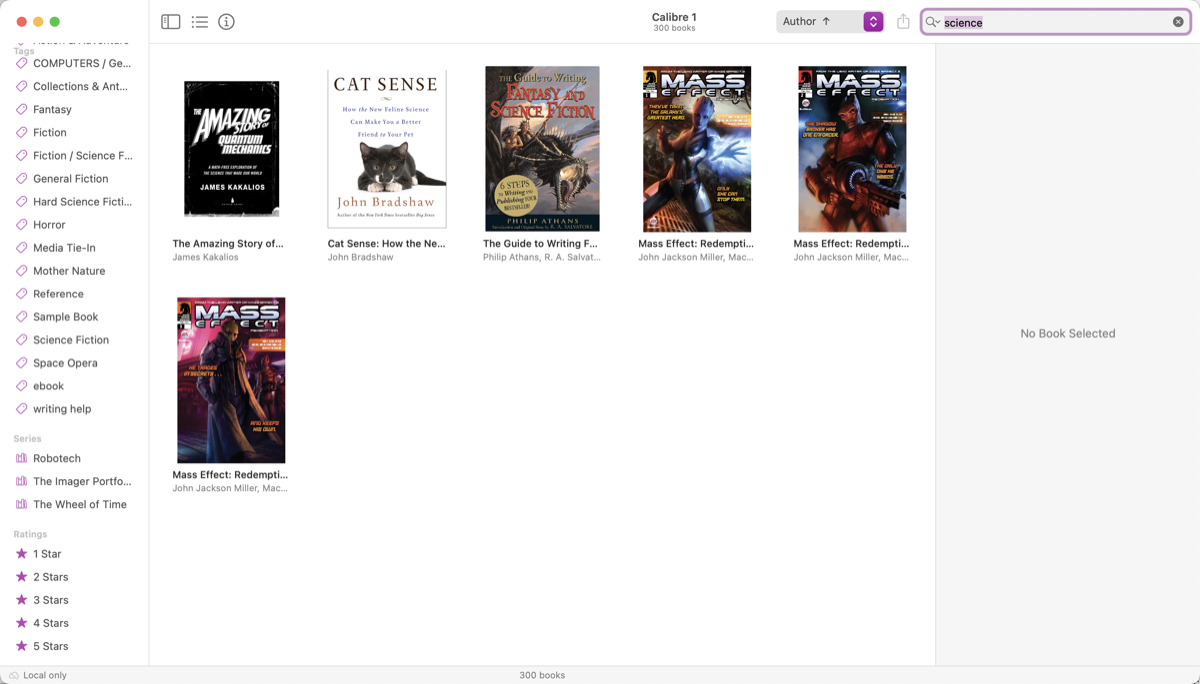
Tap or click the search field and start typing. Results update as you type, ordered by relevance — the books that match best appear first.
Search scope controls which fields are searched. The default is Title & Author. Other scopes are Title, Author, Series, Tags, Synopsis, and All Fields. Series names and tags are fully searchable.
Mac Click the magnifying glass icon inside the search field to open the search menu, where you can choose a scope and see recent searches. Press ⌘F to focus the search field. Press Escape to clear the search and return to the full library. If a search finds nothing while the scope is narrowed to one field, Alcove offers a Search All Fields button so a scope left over from an earlier session won't hide matching books.
iPad Tap the search field in the toolbar to activate it. Scope buttons appear below the search bar — tap one to narrow the search to that field. Tap Cancel to dismiss search.
Opening Books
Mac Double-click a book, or select it and press ⇧⌘O, to open it in your reader app. Alcove opens the file in the app set in Settings → Default EPUB Reader or Settings → Default PDF Reader. Control-click a book and choose Open With to open it in a specific app for that session only.
iPad Tap a book to select it and show its details in the detail pane. Tap the Open button in the detail pane to open the book. Use the share sheet to open in a specific app — iOS does not support setting a default reader app, so you choose each time from the share sheet.
Selecting Books
Tap or click a book to select it and show its details in the panel on the right.
To select multiple books:
Mac ⌘-click to add individual books to the selection. Shift-click to select a range. Click an empty area to deselect all.
iPad Tap Select in the navigation bar to enter selection mode, then tap books to select them. Tap Done to exit selection mode.
With multiple books selected, the detail panel shows bulk-action controls: set rating, set reading status, add or remove tags, replace covers, share, or delete. On iPad, the ⋯ overflow button adds Assign Series….
Mac You can also drag a selection directly onto a tag, series, rating, or reading-status item in the sidebar to apply it to all dragged books at once.
Deleting Books
Select one or more books and press Delete, or use the Book menu or context menu and choose Delete Book. A confirmation sheet appears before books are removed. Check Don't ask again to suppress future confirmations.
Mac Control-click a book to open the context menu.
iPad Touch and hold a book to open the context menu, or use the Book menu (⋯ button in the toolbar).
Deletion is undoable — use Undo immediately after to restore the deleted books.
Undo and Redo
Alcove supports full undo/redo for all library changes: ratings, tags, reading status, imports, deletions, metadata edits, and cover replacements.
Mac Press ⌘Z / ⇧⌘Z, or use the Edit menu.
iPad Use Edit → Undo / Edit → Redo from the menu (⋯ button in the toolbar), or shake the device.