Preferences and Settings
Opening Settings
Mac Choose Alcove → Settings… or press ⌘,.
iPad Tap the ⚙ (gear) button at the bottom of the sidebar, then tap Settings.
General
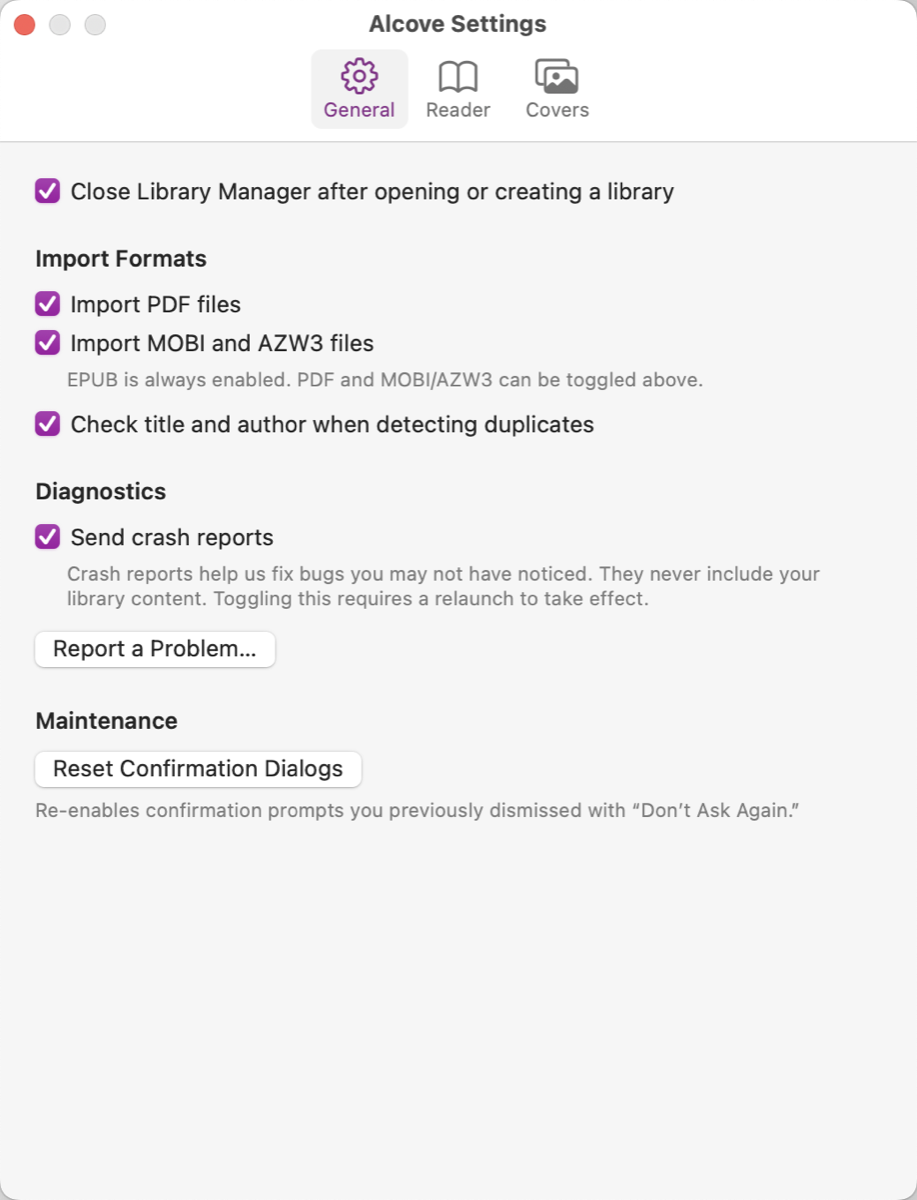
Mac These options are in Settings → General.
iPad These options are in the General and Library sections of Settings.
| Setting | Description | Platforms |
|---|---|---|
| Close Library Manager after opening a library | Automatically dismisses the Library Manager when you open or create a library | Mac |
| Show status bar | Shows or hides the status strip at the bottom of the library window | iPad |
| Cover Size | Sets the size of cover thumbnails in the grid: Small, Medium, or Large | iPad |
Reader
(Mac only — Reader tab in Settings)
Sets which app opens book files when you open them from the library.
| Setting | Description |
|---|---|
| Default EPUB Reader | The app used to open EPUB files. Alcove detects all EPUB-capable apps installed on your Mac. Choose System Default to defer to macOS, or Custom… to pick any app. |
| Default PDF Reader | Same as above, for PDF files. If set to System Default, PDFs open in whatever macOS associates with PDF files (usually Preview). |
iPad iOS does not support setting a default reader app. Tap Open in the detail panel to open a book, then use the share sheet to choose which app to use. Your choice is not saved.
Import Formats
| Setting | Description |
|---|---|
| Import PDF files | When off, PDF files are ignored during drag-and-drop and file picker imports |
| Import MOBI and AZW3 files | When off, Amazon format files are ignored during import |
| Auto-tag fixed-layout books as Comics | When on, any EPUB that declares a fixed layout (comics, illustrated books, manga) is automatically tagged Comics on import. The tag can be removed or renamed at any time. On by default. |
| Check title and author when detecting duplicates | When on, Alcove also flags books with the same title and author as potential duplicates, even if the file content differs. Turn off if you intentionally keep multiple editions. |
EPUB is always enabled and cannot be turned off.
Covers
Cover preferences control how automatic cover searches work, both for single books and for bulk replacement.
Mac These options are in Settings → Covers.
iPad Tap Cover Sources & Search in the Covers section of Settings.
Source Order
Alcove searches three sources for cover images: Open Library, Apple, and Google Books. Drag the sources into your preferred priority order. Sources can also be toggled on or off individually.
Multi-Select Mode
Controls what happens when you replace covers for multiple selected books at once.
| Mode | Behavior |
|---|---|
| Automatic | Alcove picks the best result for each book. If the best match scores above the quality threshold, it is applied automatically; otherwise the review wizard opens for that book. |
| Always Wizard | Always opens the one-at-a-time review wizard so you confirm each cover. |
| Always Batch | Always opens the batch review sheet showing all proposed covers at once. |
Quality Threshold
Used in Automatic mode. Enter a number between 1 and 50. Covers that score below this threshold are not auto-accepted and always go to the review wizard.
Sidebar
Controls which sections appear in the sidebar and in what order.
Mac These options are in Settings → Sidebar.
iPad Tap Sidebar Sections in the Settings screen.
Each section (Reading Status, Format, Tags, Series, Ratings) can be hidden or shown individually. Library is always shown at the top and cannot be hidden or moved.
- Mac — drag the reorder handle (≡) on the right of each row to change the order; use the checkbox to hide or show a section. You can also right-click any section header in the sidebar and choose Hide [Section Name] directly.
- iPad — drag the reorder handle on the right to rearrange; use the toggle switch to hide or show a section.
Changes take effect immediately in the sidebar.
Diagnostics
| Setting | Description |
|---|---|
| Send crash reports | When on, anonymous crash logs are sent to the developer to help identify bugs. No personal data, book files, or metadata are ever transmitted. On by default. |
| Report a Problem… | Opens the bug report form |
Maintenance
Reset Confirmation Dialogs — restores all confirmation sheets that were suppressed by checking "Don't ask again" (for example, the delete book confirmation). After resetting, Alcove will ask again the next time each action is performed.