Organizing Your Library
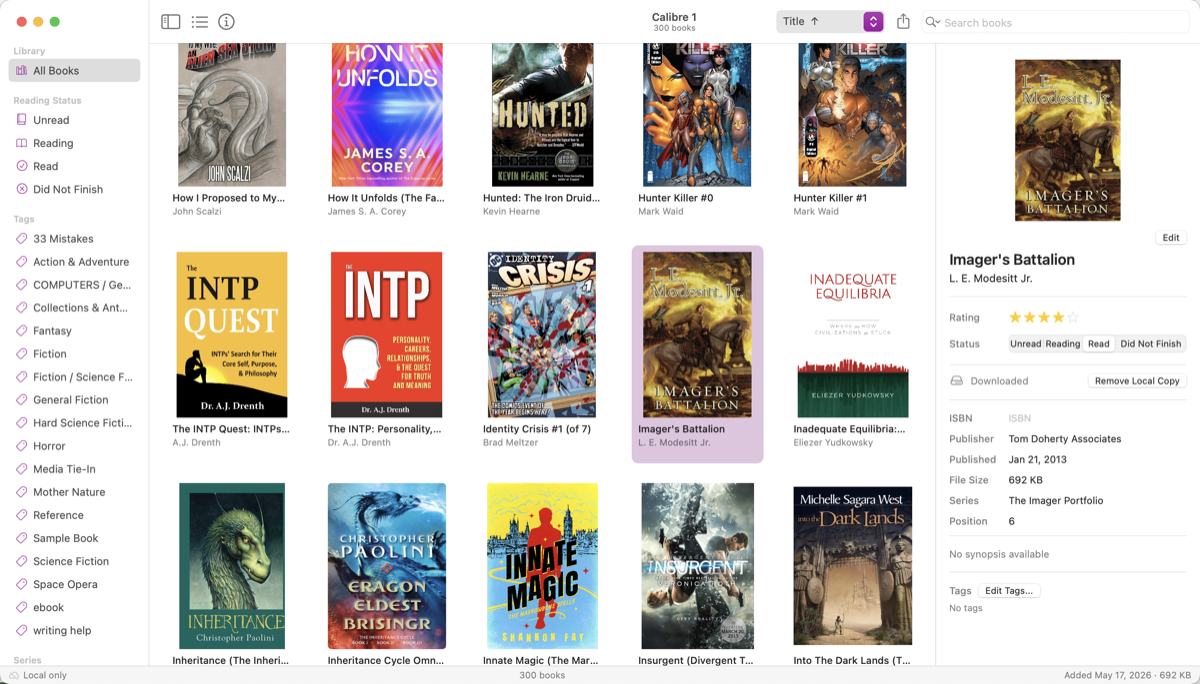
Alcove gives you five tools for organizing books: tags, ratings, reading status, series, and cover art. All metadata changes save instantly and are undoable.
Tags
Tags are freeform labels you create. A book can have any number of tags. Use them however makes sense for your collection — genre, mood, format, source, reading list, anything.
Adding and Removing Tags
Select a book and tap or click Edit Tags… in the detail panel. A picker lists all your existing tags; select a tag to add it, select it again to remove it. Type in the search field at the top to filter, or type a new name and press Return to create it.
To remove a tag without opening the picker, tap or click the × on the tag chip in the detail panel.
Filtering by Tag
Tap or click any tag in the sidebar to filter the grid to books with that tag. Tap it again (or select All Books) to clear the filter.
Bulk Tagging
Select multiple books, then use Add Tag… or Remove Tag… to apply a tag to — or remove it from — all selected books at once.
Mac Use the Book menu or Control-click any selected book. You can also drag any selection of books from the grid or list directly onto a tag in the sidebar — Alcove adds that tag to all dragged books in a single undoable action.
iPad Use the Book menu (⋯ button) or touch and hold any selected book.
Managing Tags
Right-click (Mac) or touch and hold (iPad) a tag in the sidebar to Rename or Delete it. Renaming updates every book that uses the tag. Deleting removes the tag from all books — the books themselves are not deleted.
Ratings
Ratings are 0–5 stars. Select a book and tap or click the stars in the detail panel to set a rating. Tap or click the currently selected star to clear the rating back to unrated.
Ratings are shown in list view (Mac) and can be used to filter and sort your library. To bulk-rate, select multiple books and set the stars in the detail panel — the new rating is applied to all of them.
Mac You can also drag a selection of books from the grid or list directly onto a star rating in the sidebar to bulk-set that rating in one undoable action.
Reading Status
Each book has one of four statuses:
| Status | Meaning |
|---|---|
| Unread | Not started (default) |
| Reading | Currently in progress |
| Read | Finished |
| Did Not Finish | Abandoned |
Set the status using the segmented control in the detail panel. Tap or click a status in the sidebar to filter the grid to books with that status.
To bulk-update, select multiple books and tap or click the segmented control in the detail panel.
Mac You can also drag a selection of books from the grid or list directly onto a reading status item in the sidebar to set all dragged books to that status at once.
Series
If a book belongs to a series, record the series name and position in the detail panel while in edit mode. The Series field offers your existing series names — select one from the list or type a new name. The Position field accepts a number (decimals are allowed, e.g., 1.5 for a novella between books 1 and 2).
Bulk Assigning a Series
Mac Select multiple books in the grid or list and drag them onto any series in the sidebar — all dragged books are added to that series in one undoable action. Position is left unchanged for books already in the series.
iPad In selection mode, tap the ⋯ overflow button in the toolbar and choose Assign Series…. Pick a series from the list to add all selected books to it.
Browsing by Series
The sidebar shows a Series section below Tags. Tap or click any series to filter the grid to books in that series, ordered by their series position.
Sorting by Series
Choose Series from the sort menu to sort your library alphabetically by series name, then by position within each series. Books without a series sort at the end.
Cover Art
The cover image is extracted from the book file on import. You can replace it at any time.
Replacing a Single Cover
Mac Choose Book → Replace Cover… or Control-click a book and choose Replace Cover…. A sheet opens with three tabs: - Search — finds covers on Open Library, Apple, and Google Books by ISBN or title + author; click a result to preview, then Use This Cover to apply it - File — choose an image file from disk - Paste — uses an image already on the clipboard
You can also drag an image file directly onto the cover area in the detail panel.
iPad Tap the cover image in the detail panel, or tap the Replace Cover button in the toolbar. The same Search, File, and Paste options are available.
Covers are stored separately from the book file, so replacing a cover never modifies the original. Covers sync via iCloud along with the rest of your library.
Replacing Covers for Multiple Books
Select several books, then choose Replace Cover… from the Book menu or context menu. Alcove searches Open Library, Apple, and Google Books for each book, scores the results by image quality, and presents a review sheet where you can confirm or swap each proposed cover before anything is written. Books where no match is found are skipped.
Cover Preferences
Open Settings → Covers to control how automatic cover lookups work:
- Source order — drag sources into the priority order you prefer (Open Library, Apple, Google Books)
- Multi-select mode — choose whether bulk replacement auto-accepts the best result or always asks for review
- Quality threshold — set a minimum score below which a result will not be auto-accepted
Mac Preferences are in Alcove → Settings → Covers.
iPad Settings are in the in-app Settings screen.
Editing Metadata
Select a book and tap or click Edit in the detail panel to change its metadata. Tap or click Done to save, or Cancel to discard. All edits are undoable.
| Field | Notes |
|---|---|
| Title | Full title |
| Author(s) | Comma-separated list for multiple authors |
| ISBN | 10 or 13 digits; used for metadata and cover lookups |
| Publisher | Typing offers completions from your library |
| Published | Publication date |
| Original Year | Year of first publication; shown only in edit mode when set |
| Series / Position | Series name and number within the series |
| Sort Title | Override the auto-generated sort key (e.g., file The Hobbit under H) |
| Sort Author | Override the auto-generated author sort key |
| Synopsis | Free text description |
Look Up Metadata
For books with incomplete metadata, choose Book → Look Up Metadata… (or Control-click (Mac) / touch and hold (iPad)). Alcove searches OpenLibrary and Google Books, presents a list of candidates, and lets you review each proposed field individually — check the fields you want to accept, then click or tap Accept All. You can process multiple books in one pass using the book list on the left side of the sheet.