Multiple Libraries
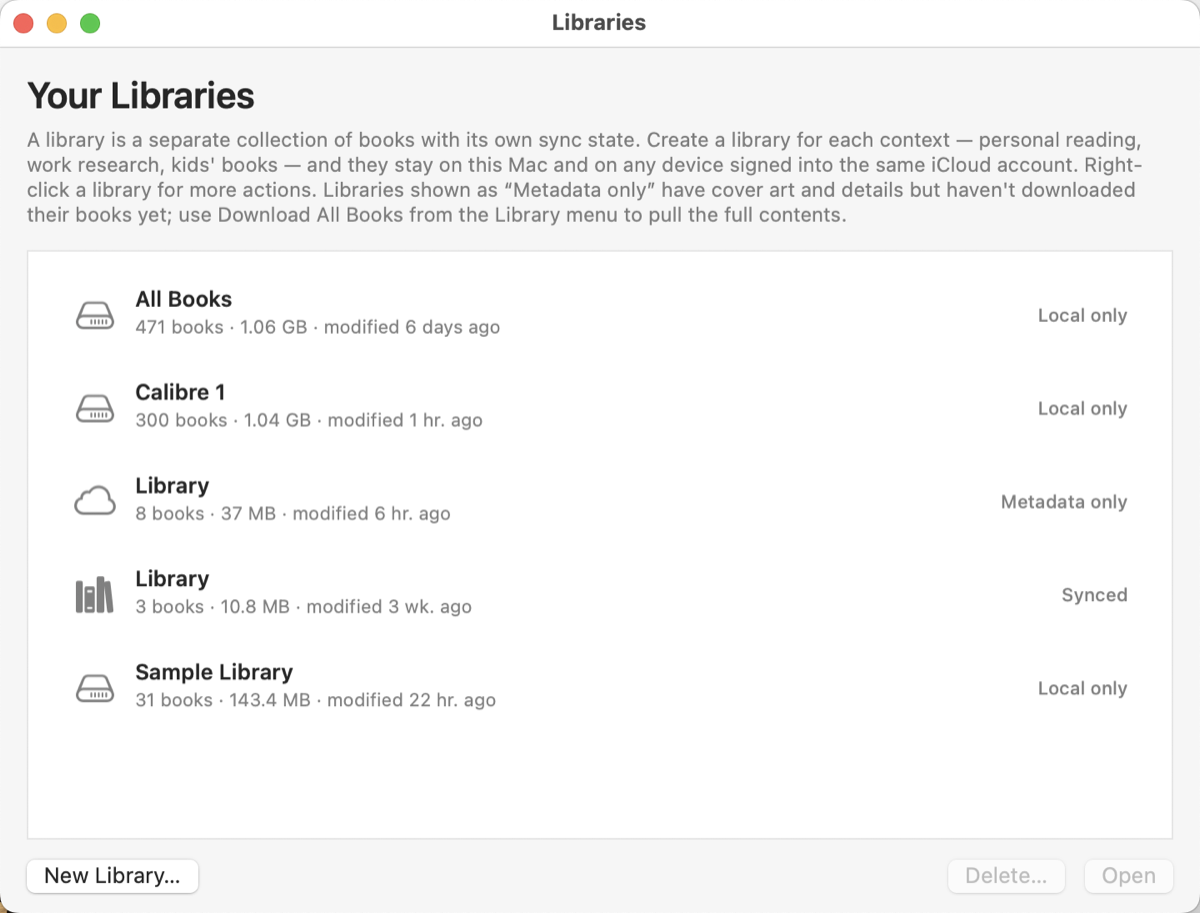
Alcove supports multiple libraries. Each library is an independent collection with its own books, tags, ratings, and sync settings.
Common uses: - Separate libraries for fiction and non-fiction - A shared family library alongside a personal one - A local archive library for books you've finished
Opening the Library Manager
Mac Choose Library → Show Library Manager… to open a window listing all your libraries.
iPad Tap the library name at the top of the sidebar, then tap Manage Libraries, or choose Library → Manage Libraries from the menu.
Creating a Library
In the Library Manager, tap or click New Library…. Enter a name and choose whether to enable iCloud sync (see iCloud vs. Local below). The new library opens immediately.
Switching Libraries
Mac In the Library Manager, select a library and click Open, or double-click it. Each library opens in its own window — you can have multiple libraries open at once.
iPad In the Library Manager, tap a library to open it. Alcove switches to that library.
Library Actions
Both platforms support the following actions. On Mac, Control-click a library in the Library Manager for a context menu. On iPad, touch and hold a library or use the context menu.
| Action | Description |
|---|---|
| Rename… | Change the library's display name |
| Duplicate… | Create a copy of the library with all its books and metadata |
| Export Archive… | Save the library as a portable .alcovex archive (see Sharing and Exporting) |
| Download All Books | Download all cloud-only books in this library to this device |
| Remove Downloaded Books… | Remove local copies; books remain in iCloud |
| Delete | Remove the library |
The Library menu also provides Download All Books, Remove Downloaded Books…, Export Archive…, Import Archive…, and other library actions for the currently open library without opening the Library Manager.
Deleting a Library
Mac Control-click a library in the Library Manager for two delete options: Remove From This Mac removes the library from this Mac only (it remains on other iCloud devices), and Delete Everywhere… permanently removes the library and all its books from iCloud and every device.
iPad In the Library Manager, touch and hold a library and choose Delete, or swipe left on a library row. You'll be asked to confirm and choose whether to remove from this device only or delete everywhere.
iCloud Libraries vs. Local Libraries
When creating a new library, Alcove asks whether to enable iCloud sync.
| iCloud Library | Local Library | |
|---|---|---|
| Syncs to other devices | Yes | No |
| Available offline | After download | Always |
| Counts against iCloud quota | Yes | No |
You can have a mix of iCloud and local libraries. Libraries saved in iCloud are accessible on any device signed into the same iCloud account.
Library Info
Library Info shows statistics about the current library: book count, total size, sync status, and location.
Mac Choose Library → Show Library Info or click the ⓘ button in the toolbar.
iPad Choose Library → Library Info from the menu (⋯ button in the toolbar).
Clean Up Library
Library Cleanup scans for issues and lets you fix them selectively. Open it via Library → Clean Up Library… on either platform.
After scanning, any issues found are listed with a checkbox for each:
| Issue | What cleanup does |
|---|---|
| Unused tags | Removes tags not assigned to any book |
| Empty series | Removes series entries with no books |
| Books with no file | Removes book entries where the file is missing from both local storage and iCloud |
| Missing covers | Re-extracts cover images for books whose cover file is absent |
| Orphaned files | Deletes files in the library folder that don't belong to any book |
| Stale undo trash | Clears the undo history storage to free up space |
| Normalize Author Names (Mac) | Reviews author name variations (e.g., "J.K. Rowling" vs "J. K. Rowling") and lets you consolidate them |
Check the items you want to fix, then click or tap Clean Up. A summary shows what was changed.
The Normalize Author Names step is currently Mac-only. iPad support is planned.