Sharing and Exporting
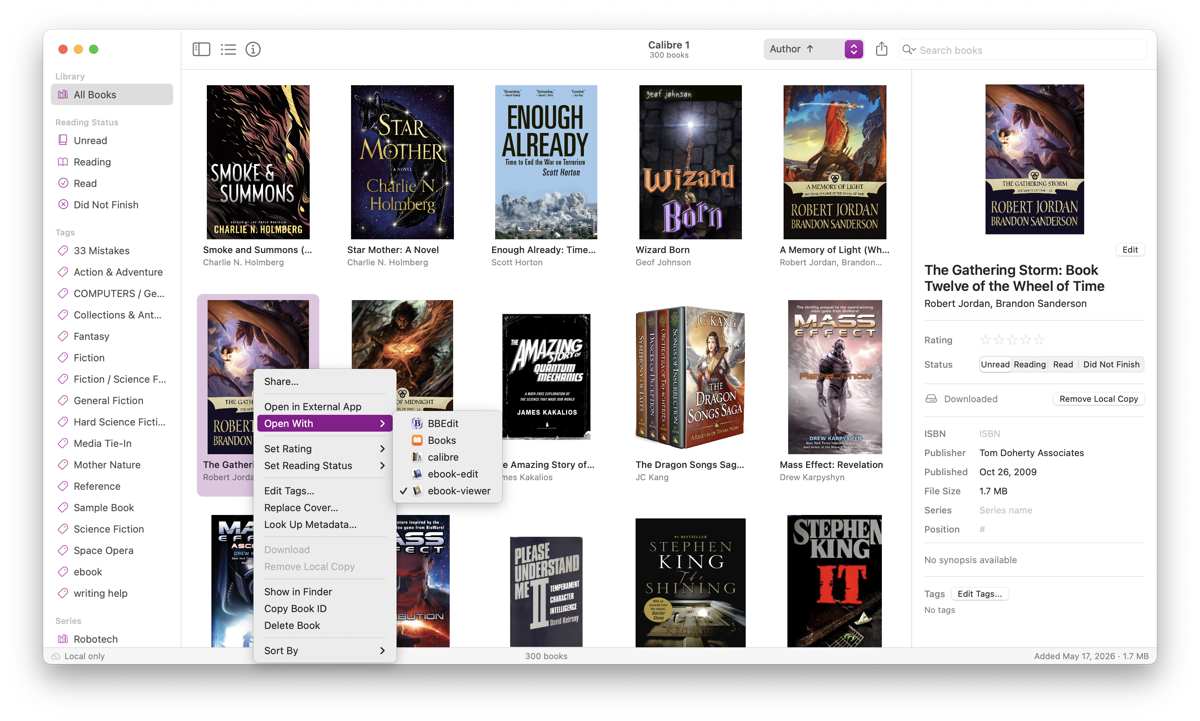
Sharing a Book
Sharing sends the book file to another app, person, or location using the system share sheet. The original file in your Alcove library is not moved or affected.
Mac Select a book and click the Share button in the toolbar, or choose Book → Share…, or Control-click a book and choose Share…. The macOS share sheet appears with options such as AirDrop, Mail, Messages, and more.
iPad Select a book to show its details, then tap the Share button in the detail panel. You can also touch and hold a book and choose Share… from the context menu. The iOS share sheet appears.
Sharing Multiple Books
Select multiple books first, then share. All selected book files are included in a single share sheet.
Mac Use the Share toolbar button or Book → Share… with multiple books selected.
iPad Enter selection mode (tap Select in the navigation bar), select the books you want, then tap Share in the bulk-action toolbar at the bottom.
Exporting a Book File
Export saves a copy of the book file to a location you choose — useful for moving a book to another app, copying it to a different device, or sending it to someone.
Mac Select one or more books and choose Book → Export…. For a single book, a Save panel opens — choose the destination and filename. For multiple books, choose a destination folder and all files are copied there.
You can also drag one or more books directly from Alcove to a Finder window or another app — Alcove copies the file to the drop destination.
iPad Select a book and choose Book → Export… from the menu (⋯ button in the toolbar). The share sheet opens — tap Save to Files to save to a folder, or choose another app to send it directly.
Opening in Another App
Mac Control-click a book and choose Open With → to see all compatible apps on your Mac and open the file in one of them. To set a permanent default, see Settings → Reader.
iPad Select a book and tap Open in the detail panel. A list of compatible apps appears — choose one to open the book. iOS does not support setting a permanent default reader app, so you choose each time.
Archive Export and Import
An archive bundles your library's catalog (metadata, tags, series) and optionally all book files into a single .alcovex package. Use it to back up a library, transfer it to a new device, or restore after data loss.
Exporting an Archive
Mac Choose Library → Export Archive…. A save dialog appears with a checkbox to include or exclude book files.
iPad Choose Library → Export Archive… from the menu, or tap the ⋯ button above the sidebar and choose Export Archive…. Choose whether to include book files, then pick a save location.
Importing an Archive
Importing an archive creates a new library — it does not merge into an existing one. You can rename the library and choose whether to sync via iCloud during import.
Mac Choose Library → Import Archive…, or double-click an
.alcovexfile in Finder. A confirmation dialog lets you edit the library name and choose local or iCloud sync.iPad Choose Library → Import Archive… from the menu, or tap the ⋯ button above the sidebar and choose Import Archive…. Select the
.alcovexfile, then confirm the library name and sync preference.
Archive vs. Metadata Export
Archives (.alcovex) contain everything needed to recreate a library, including book files. Export Metadata… (Library menu) saves only the catalog as a JSON file — useful for interoperability with other tools but not a full backup.